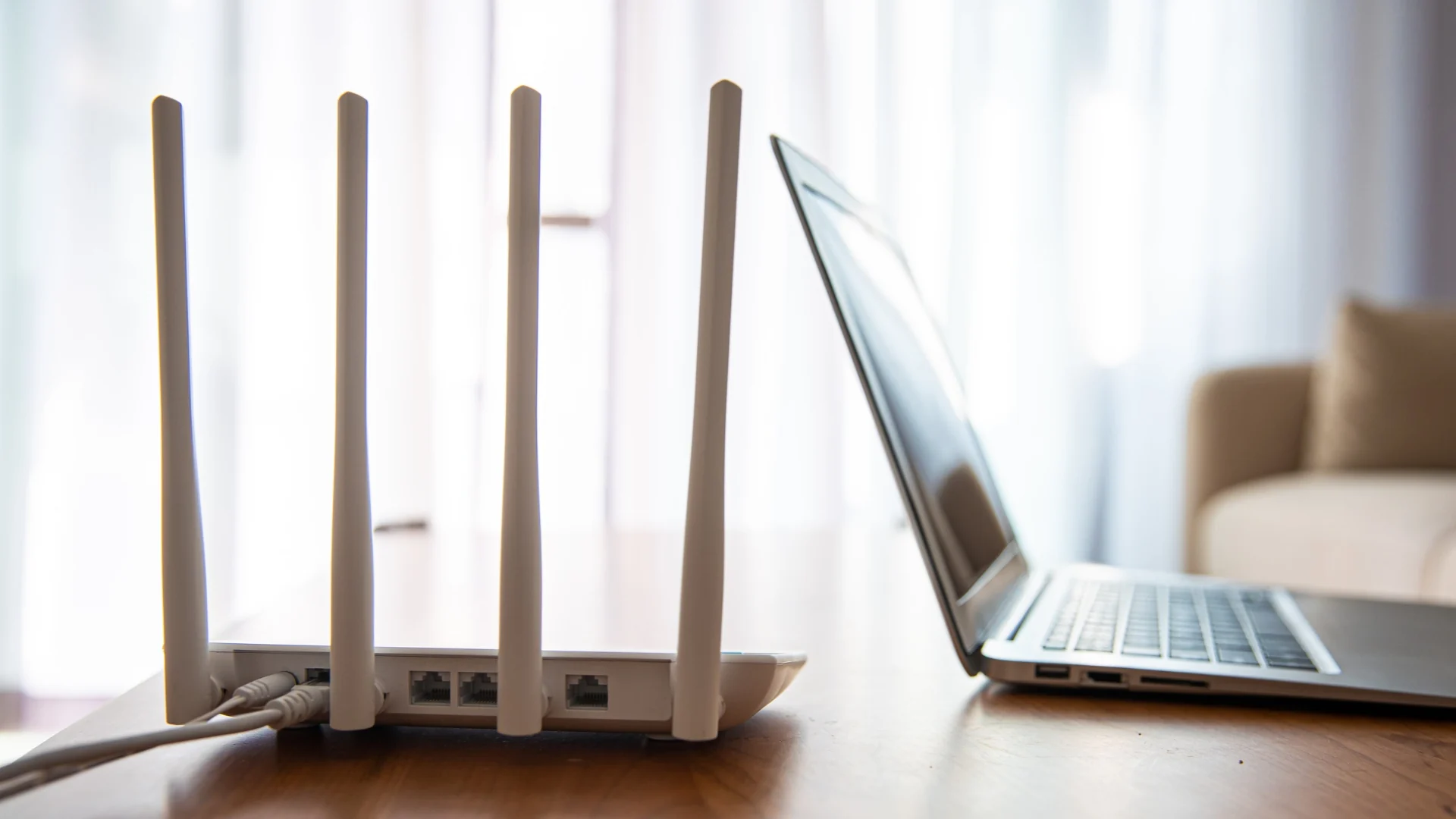
Your router's default settings leave your network open to attack. Here are eight settings to check and change.
**Security protocol.** Enable WPA3 Personal if your router supports it. It's the newest and most secure standard. If older devices won't work with WPA3, use WPA2/WPA3 Transitional mixed mode instead. At minimum, set your router to WPA2 Personal (AES).
**Admin credentials.** Factory default login credentials are searchable online. Change the default username and password for your router's admin dashboard immediately. Enable two-factor authentication for your admin account if available.
**Network name (SSID).** Choose a unique network name that contains no personal information like your name or house number. Do not hide your network. You can add "_nomap" to the end of your network name to prevent your router's physical location from being mapped by location databases.
**Wi-Fi password.** Create a strong, unique password without obvious personal information. One approach is a passphrase with five to seven unrelated words that total at least 16 characters.
**Remote management.** Turn off remote management to prevent attackers from accessing your router's admin dashboard unless they are on your network.
**WPS and UPnP.** Disable Wi-Fi Protected Setup (WPS), which lets users connect with a PIN vulnerable to brute-force attacks. Disable Universal Plug and Play (UPnP), which allows smart devices to easily connect but also spreads malware more readily. You may need UPnP on initially to connect devices, but disable it afterward.
**Separate networks.** Set up a guest network for visitors and a separate network for smart home and IoT devices. This prevents compromised networks from affecting others.
**Firmware updates.** Check your router's dashboard to enable automatic firmware updates. These patches fix security vulnerabilities. If your router requires manual updates, set a monthly or quarterly reminder to check for patches.